 Taska
Taska
🌠 Wallpaper Setup Guide
Follow the steps to set up your automated Taska wallpaper.
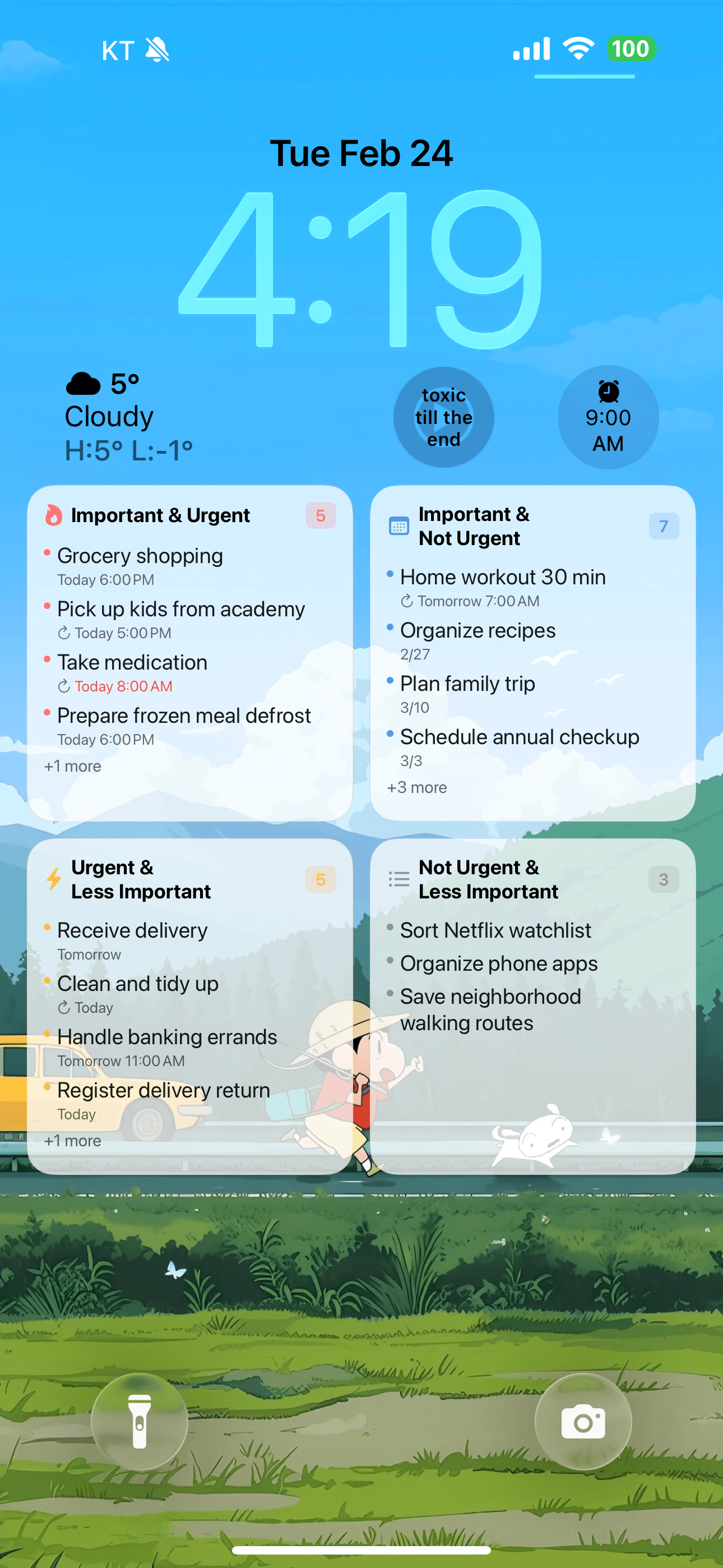
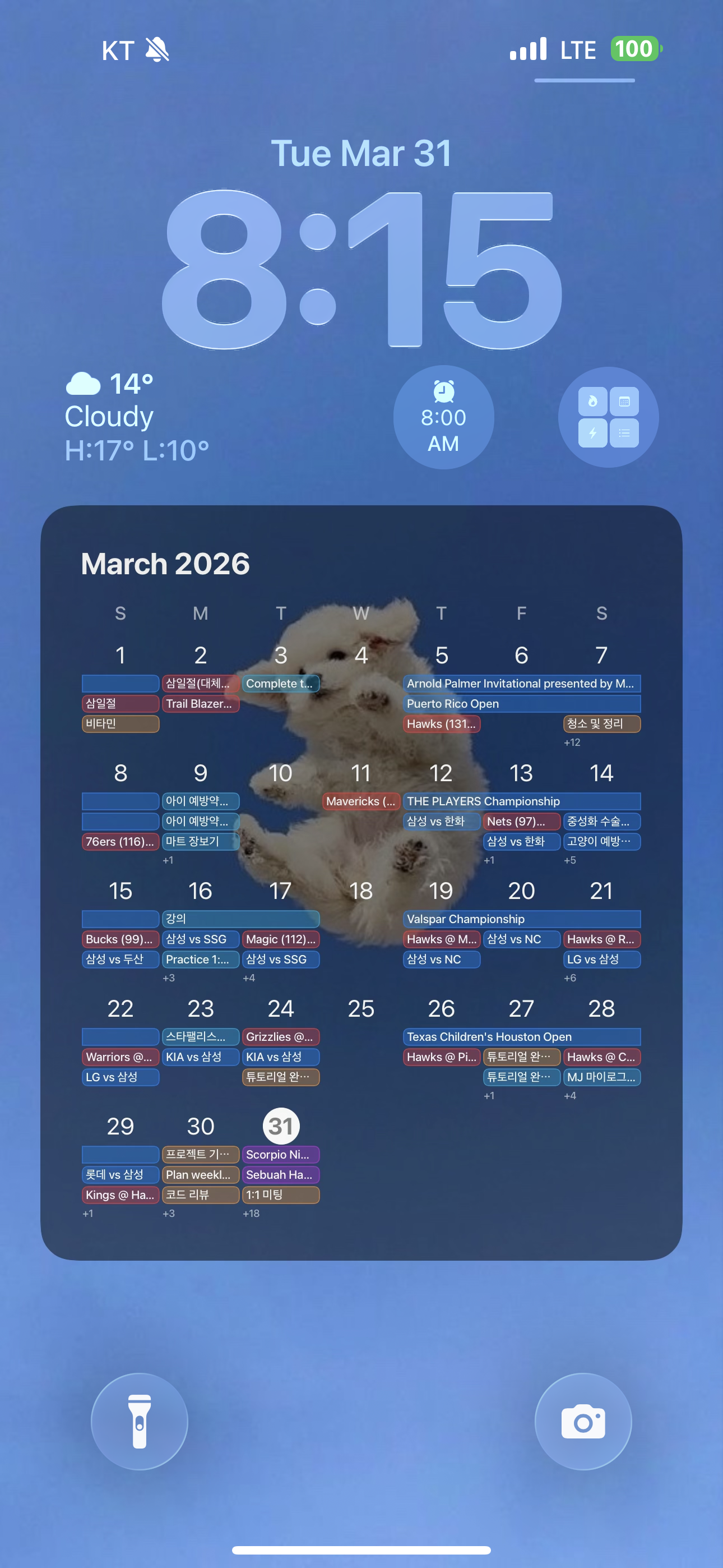
Wallpaper after setup
There is a known issue on iOS 18.6.2 where Shortcuts may not be configured properly due to an OS-level bug. Updating your iPhone to the latest version will resolve this issue.
Required 1. Automatically set wallpaper when the app opens and closes!
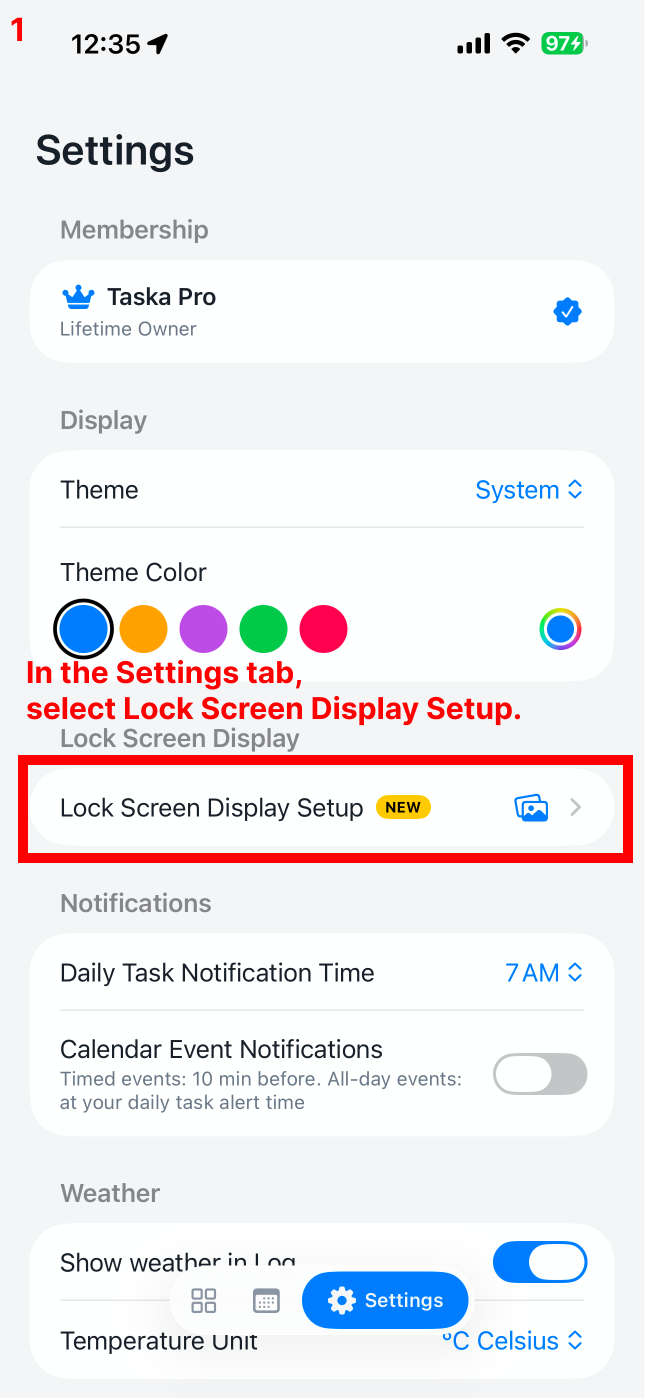
1In the Setting tab, select Lock Screen Display Setup
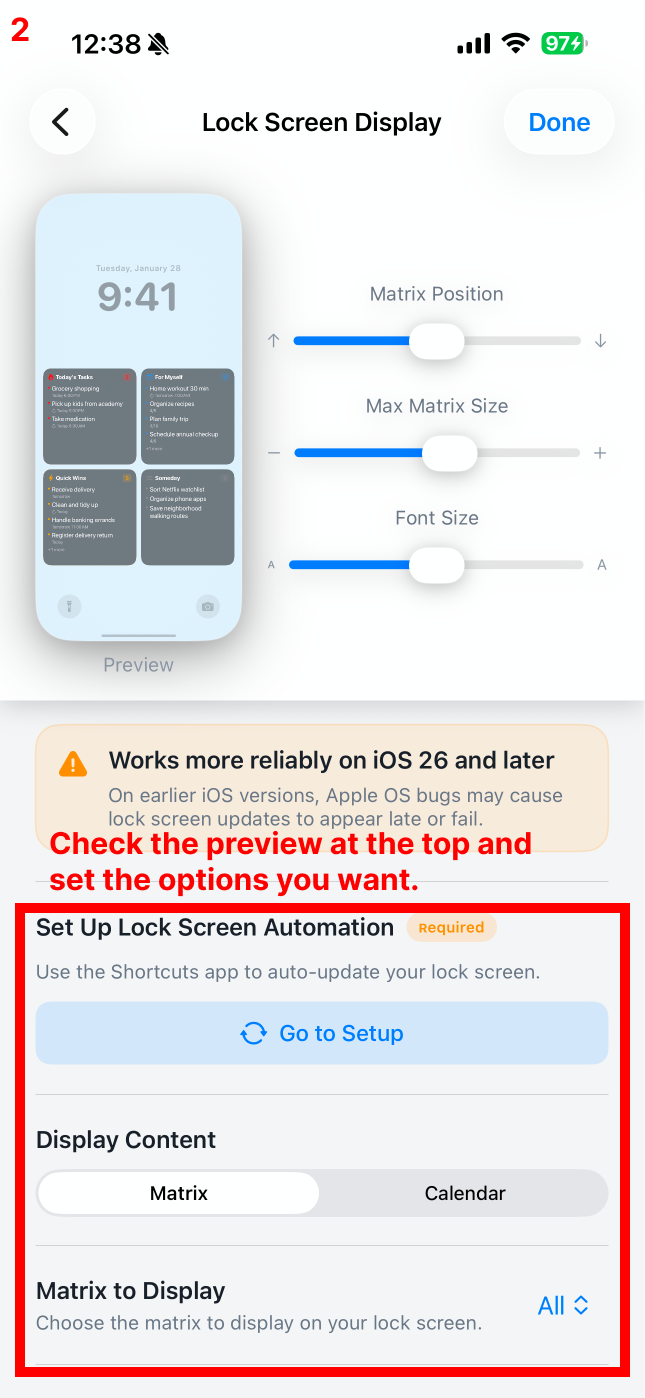
2Check the preview at the top and set the options you want
3Select Go to Setup
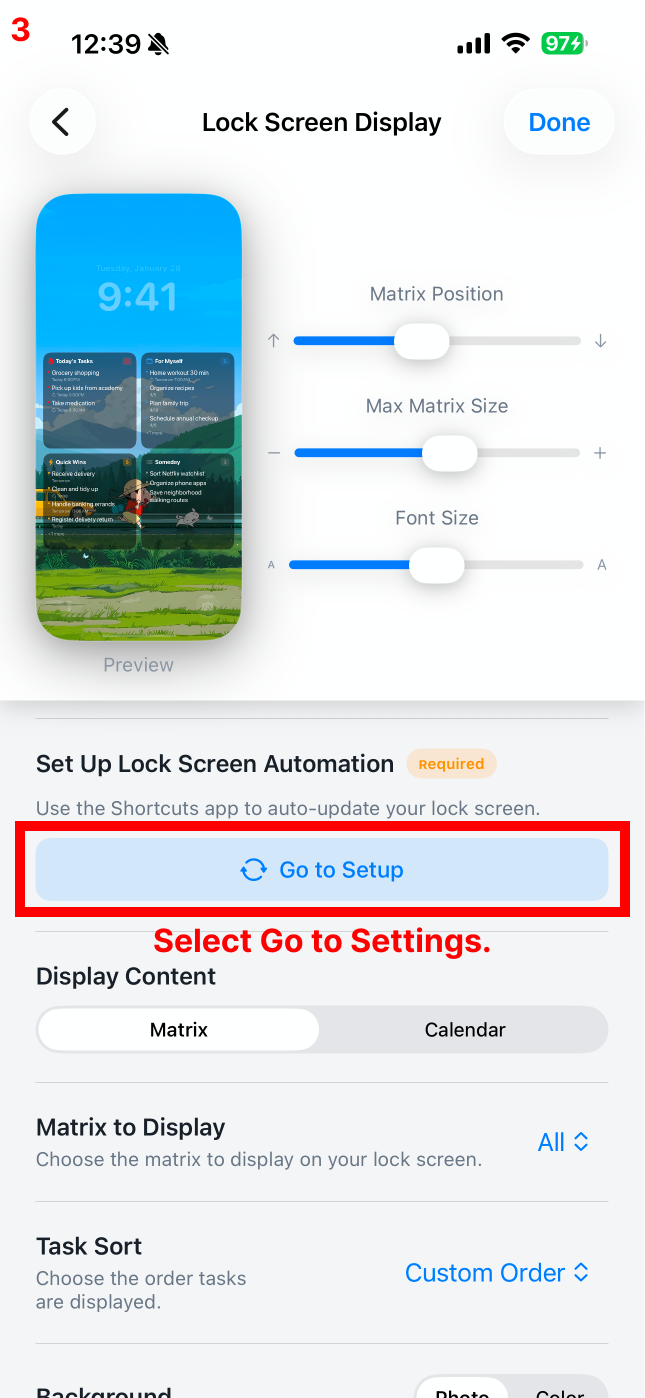
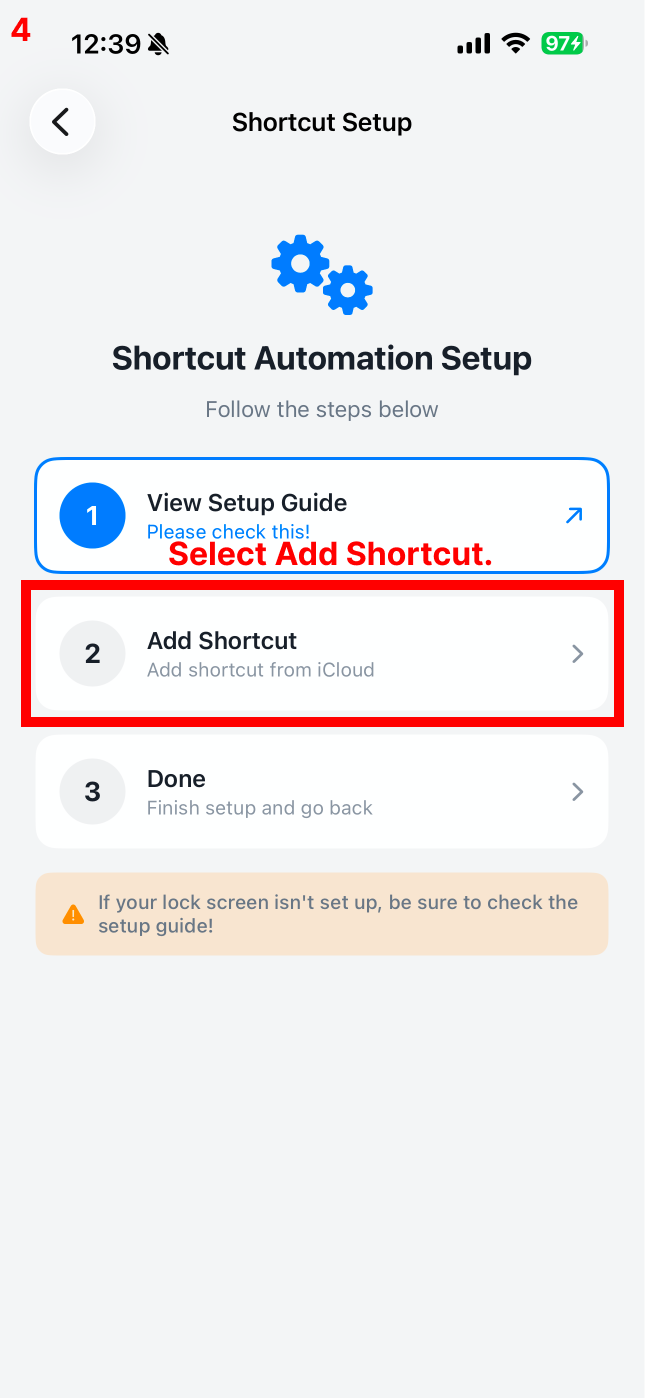
4Select Add Shortcut
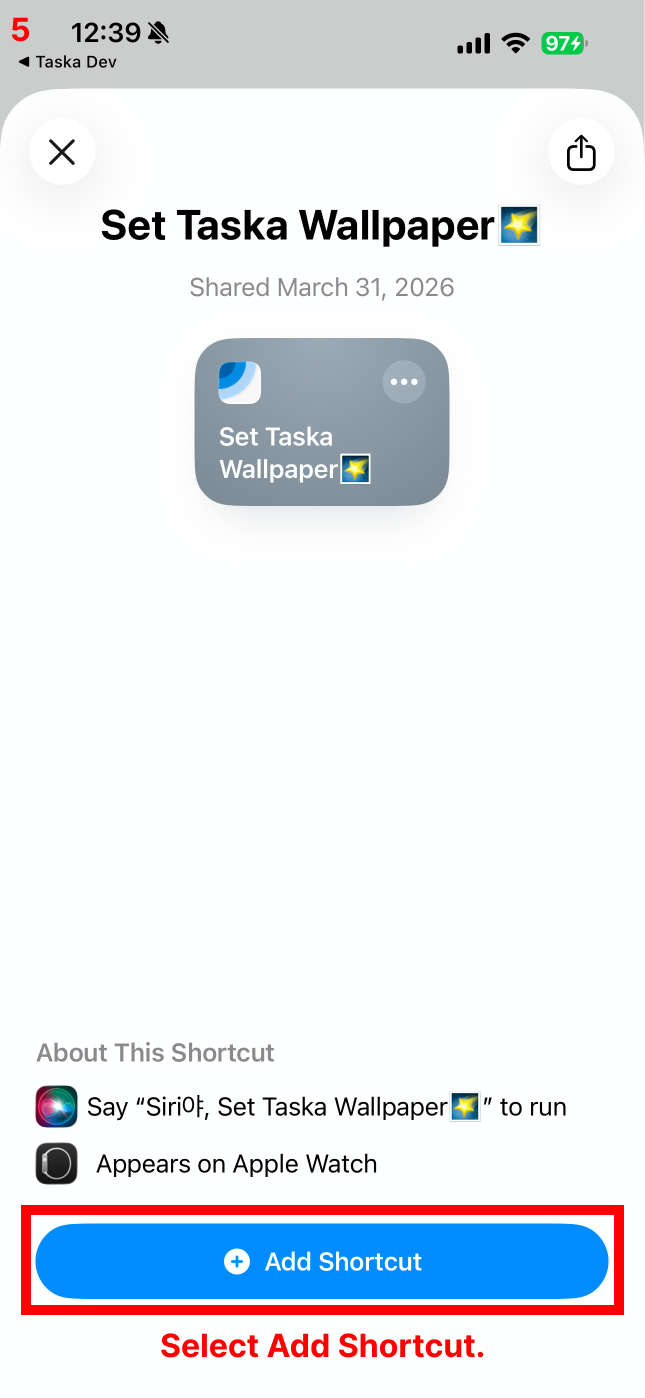
5Select Add Shortcut again
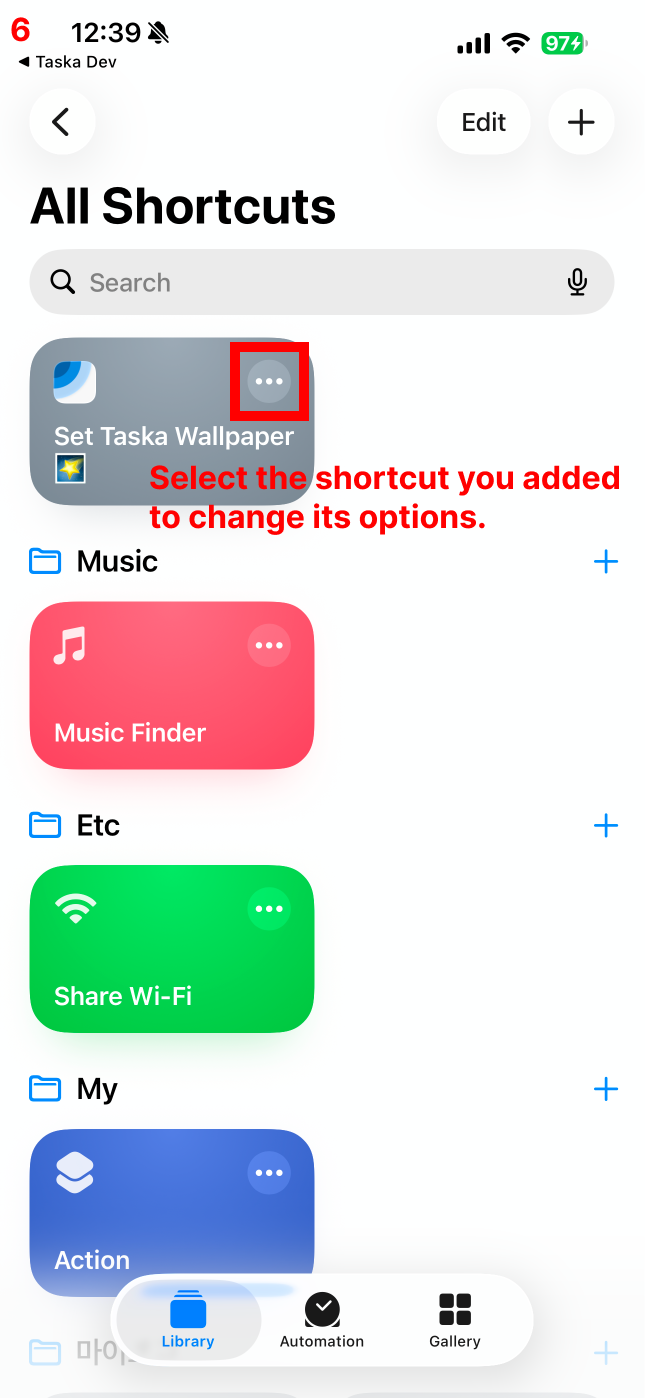
6Select the shortcut you added to change its options
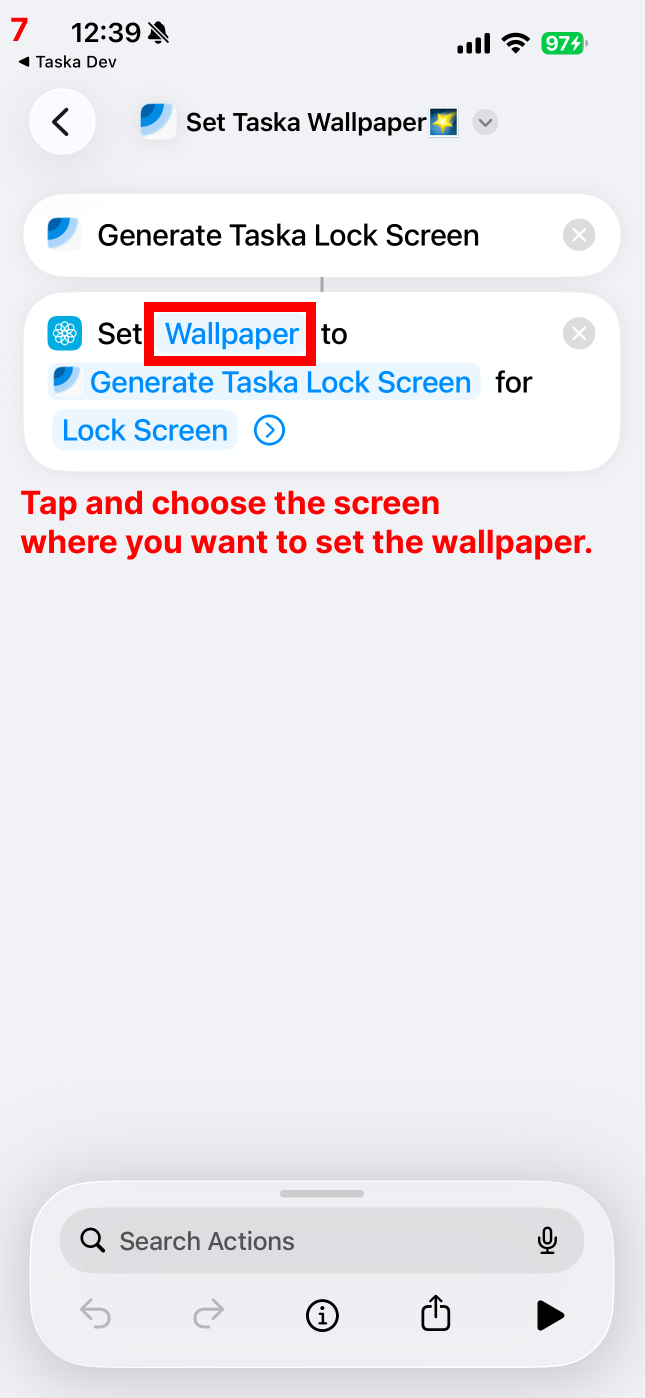
7Tap and choose the screen where you want to set the wallpaper
8Select the screen you want to configure
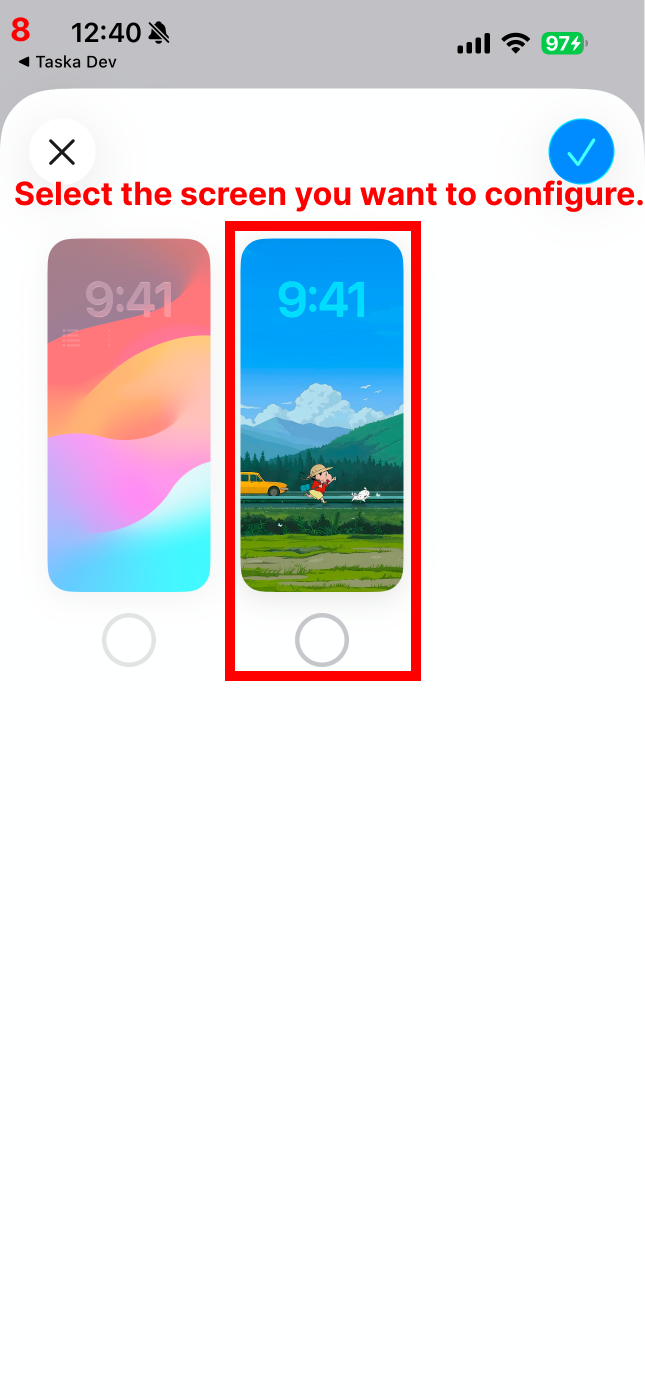
Here you're selecting the location where Taska's wallpaper will be applied — Lock Screen or Home Screen. This step doesn't change the wallpaper design or content; it just specifies where it will appear! You can customize the wallpaper design and content inside the Taska app settings.
Having trouble finding a selectable wallpaper? Apple's default wallpapers don't allow image changes. Just long-press an empty area on your lock screen and add a new wallpaper that supports custom images — then it'll show up as a selectable option :)
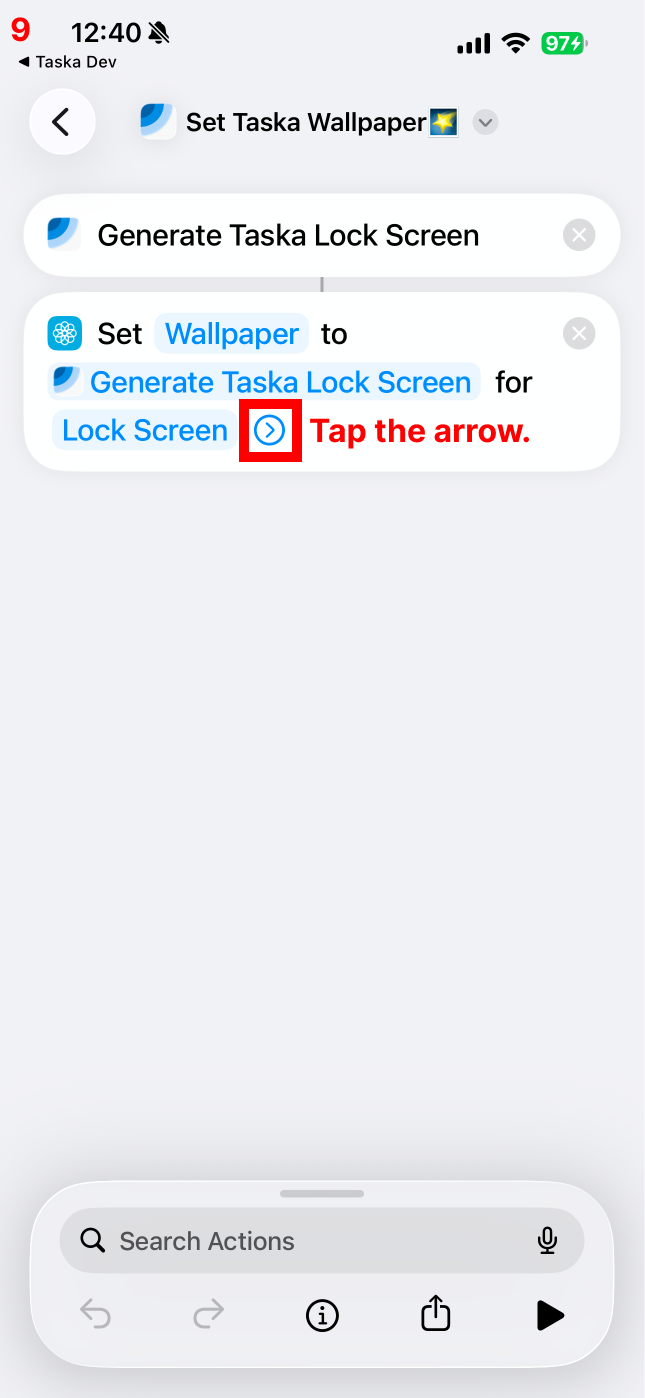
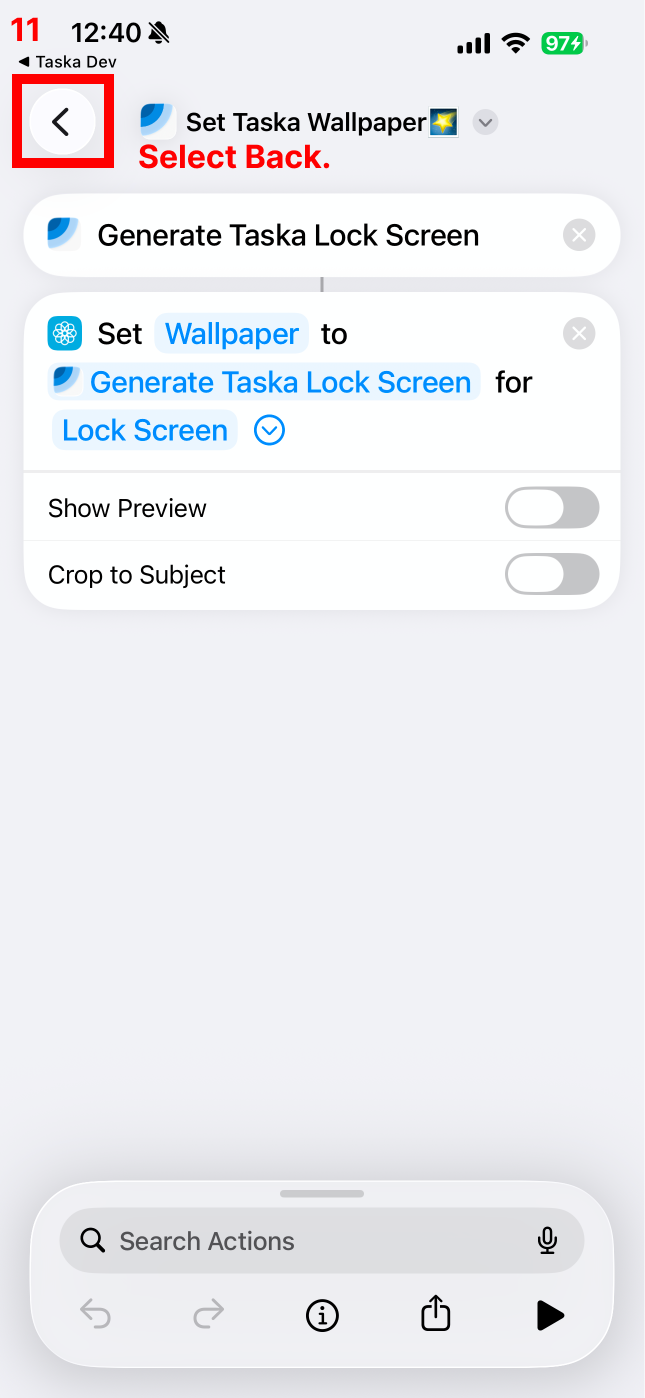
9Select Back
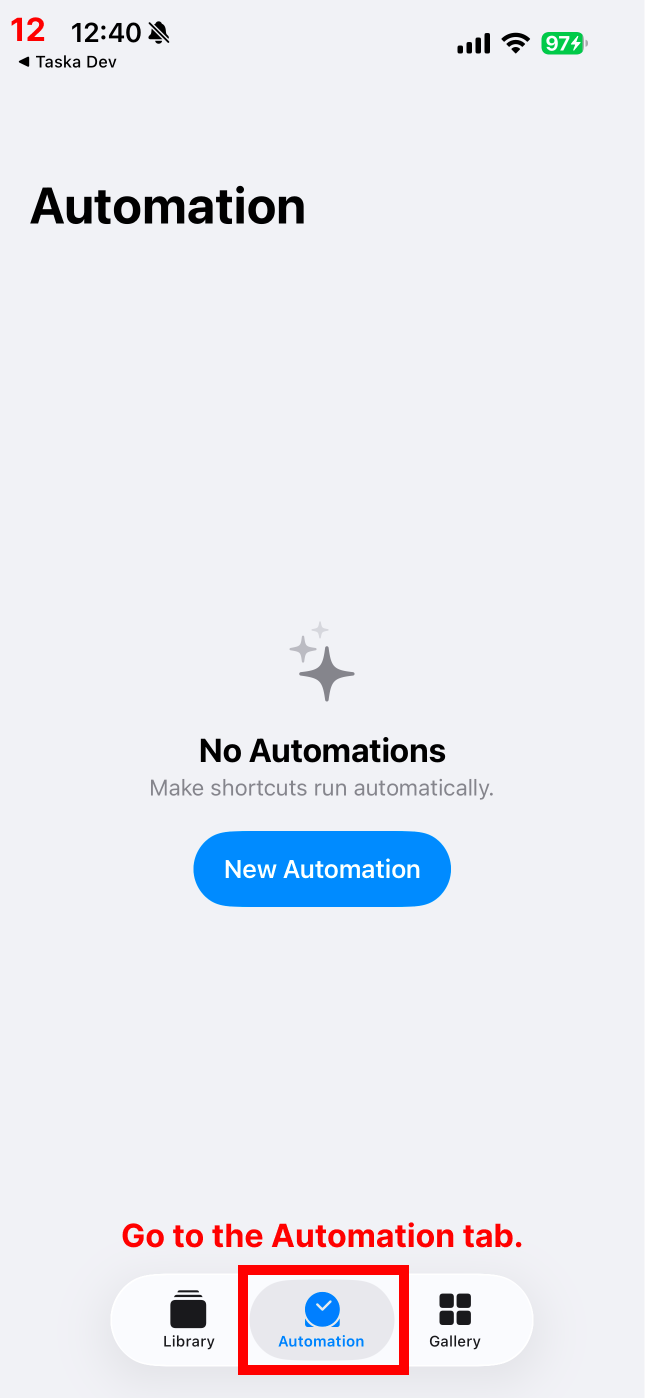
10Go to the Automation tab
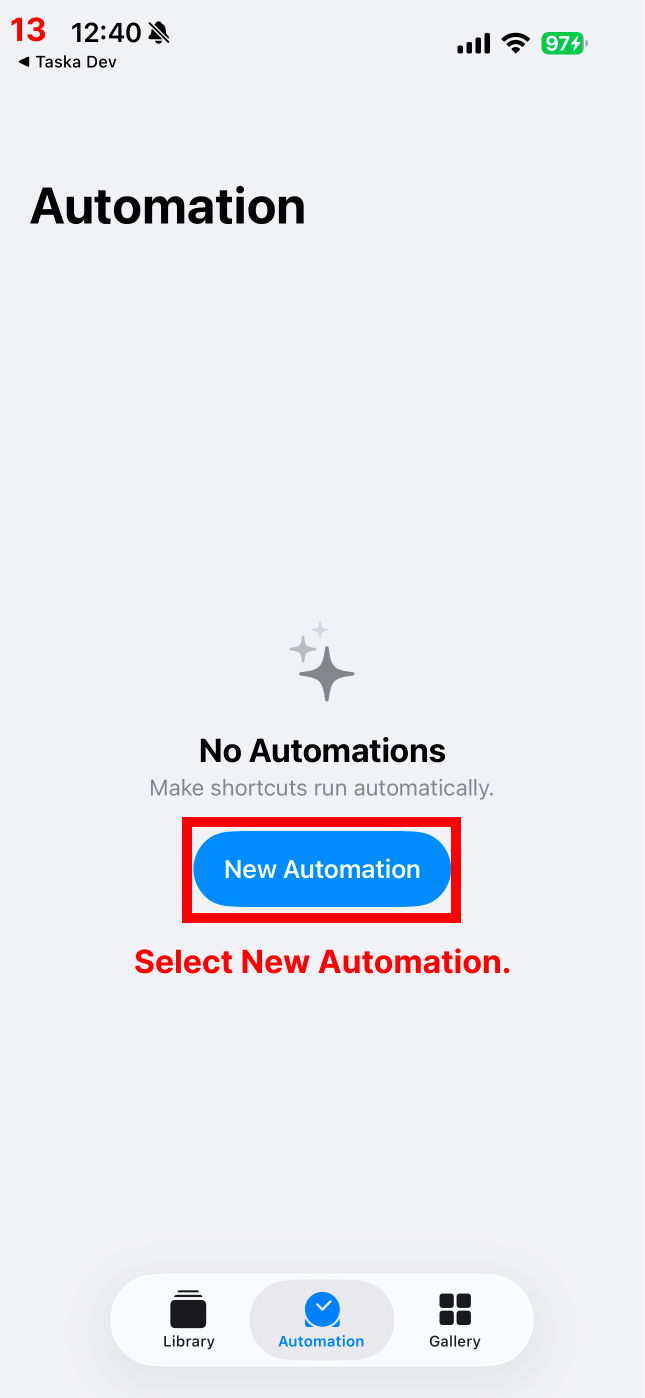
11Select New Automation
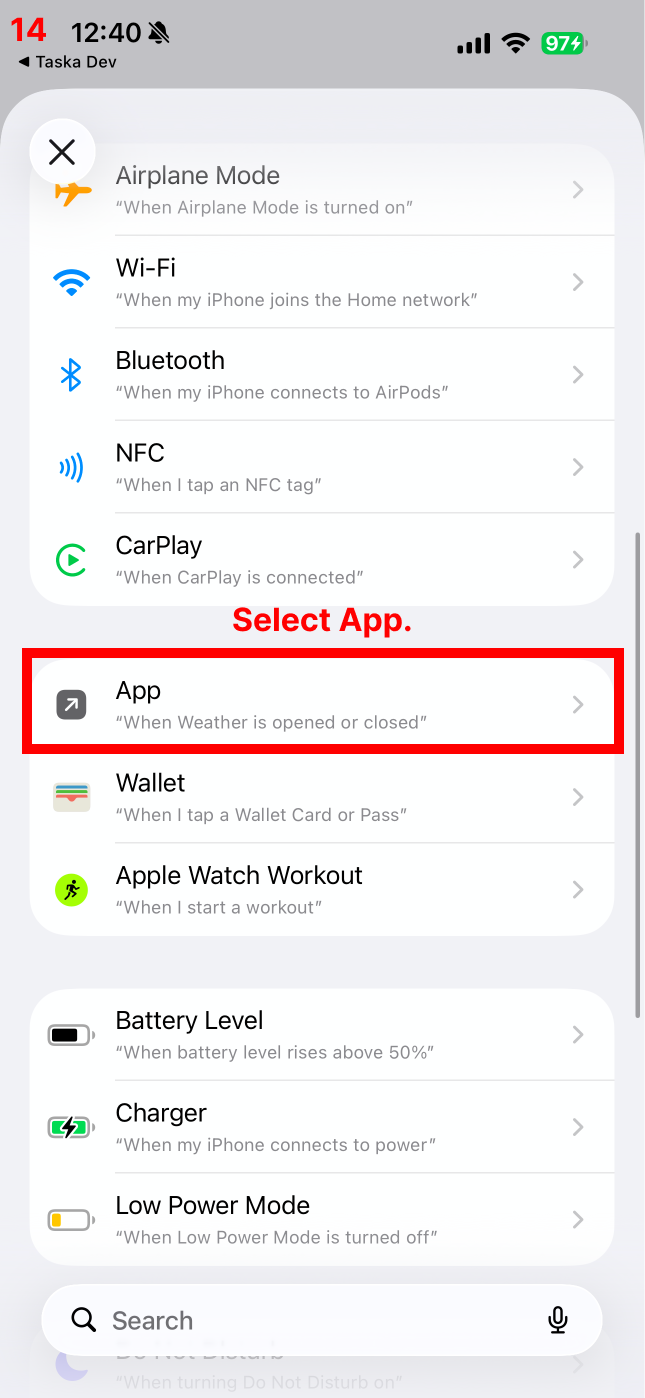
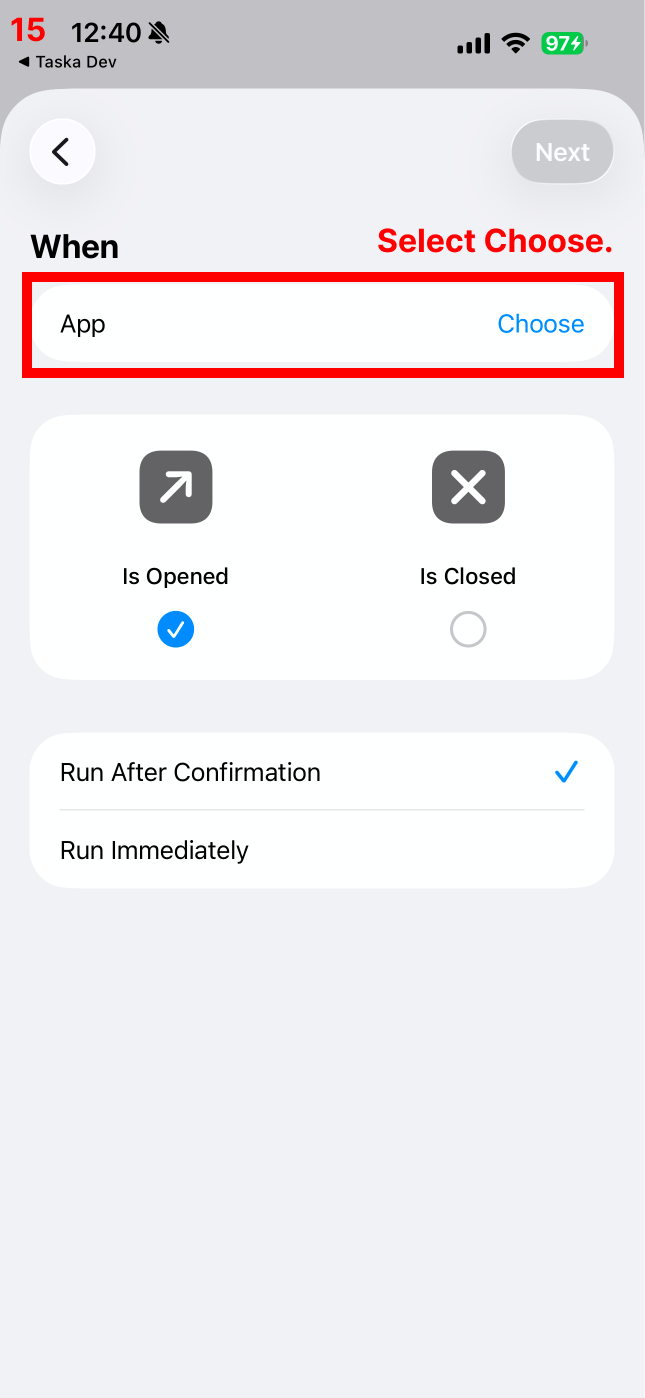
12Select App
13Select Choose
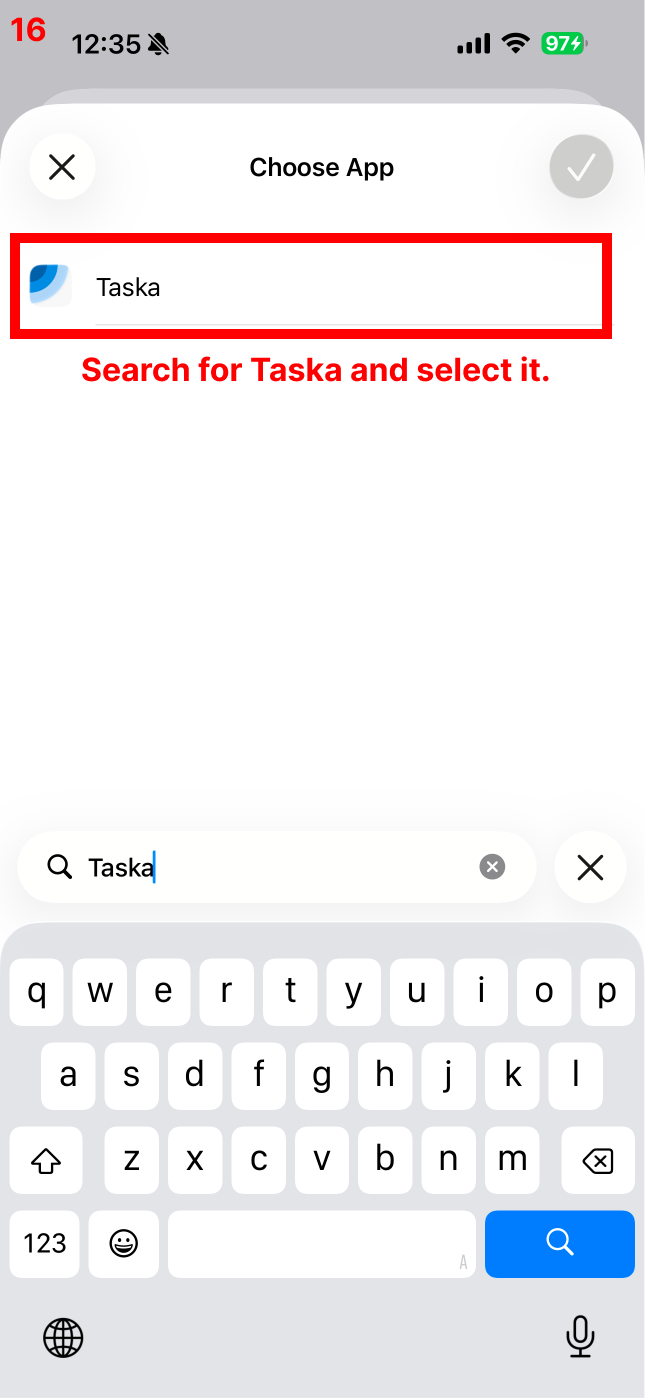
14Search for Taska and select it
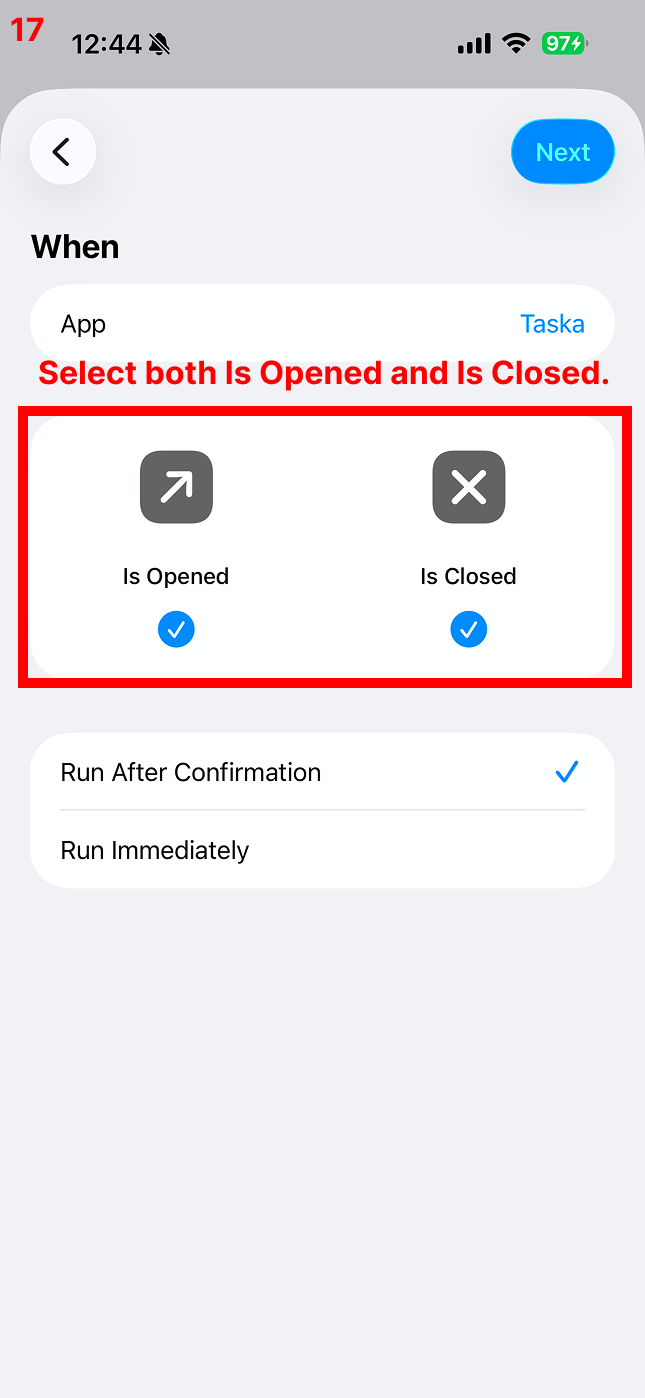
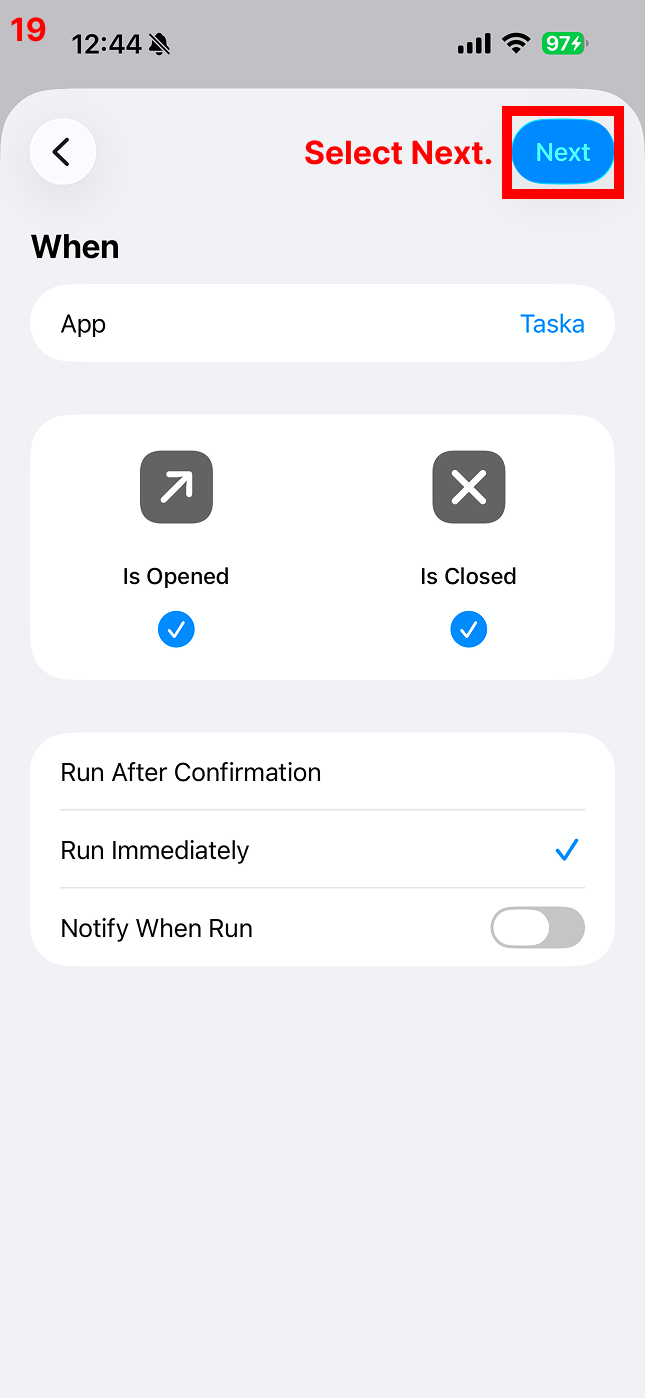
15Select both Is Opened and Is Closed
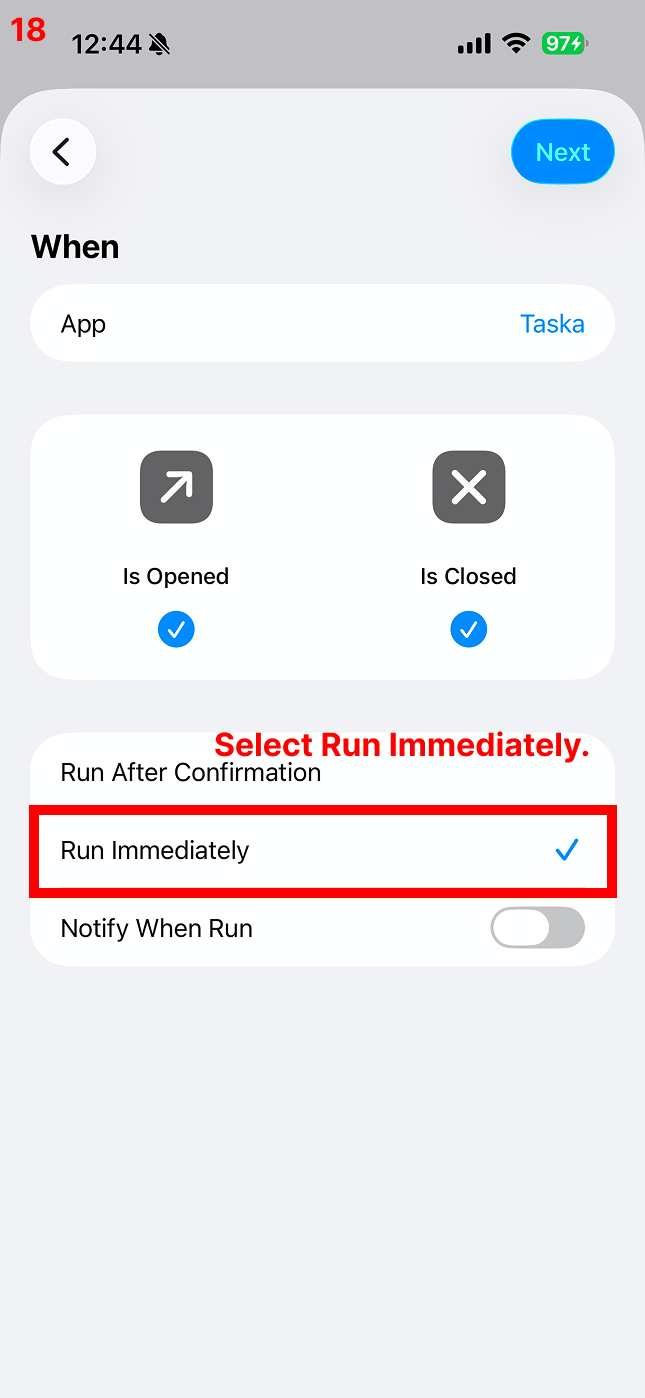
16Select Run Immediately
17Select Next
18Select the shortcut you added
19Wallpaper setup is now completed automatically when the app opens and closes!
If you've completed the setup up to this point, your wallpaper will now change automatically whenever the app opens and closes! 😊
Required 2. Automatically set wallpaper at a specific time
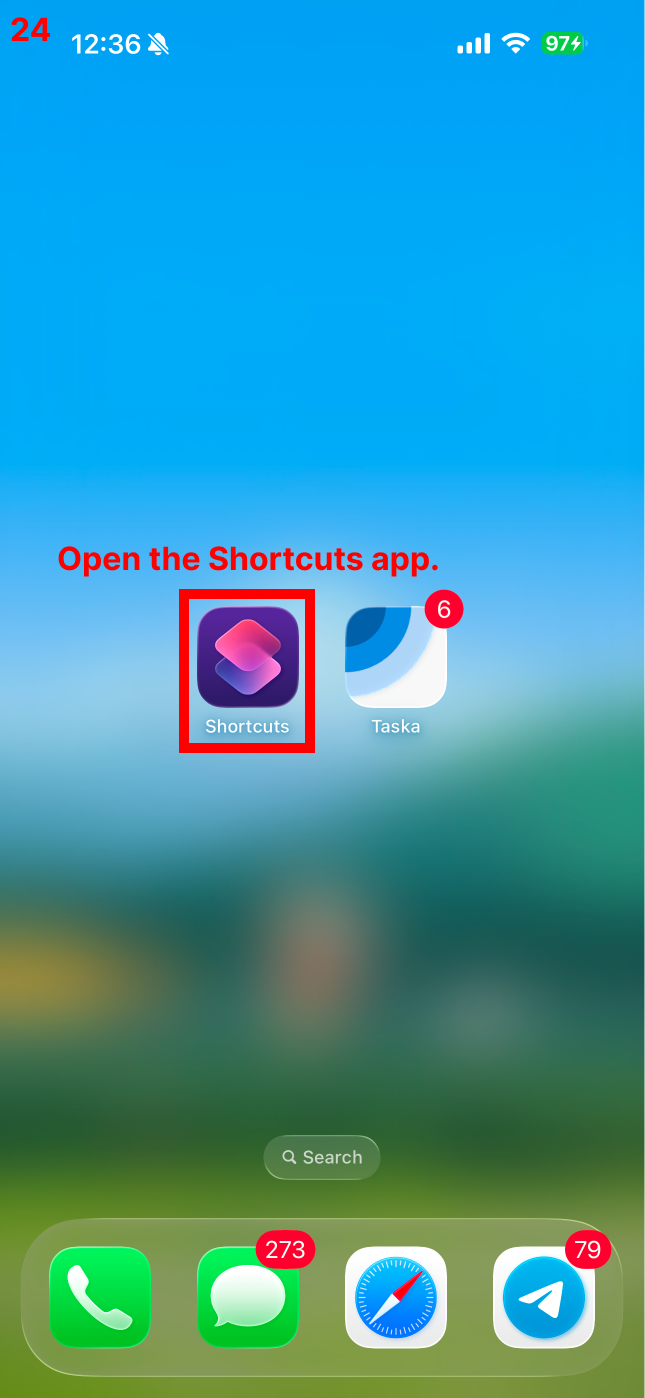
1Open the Shortcuts app
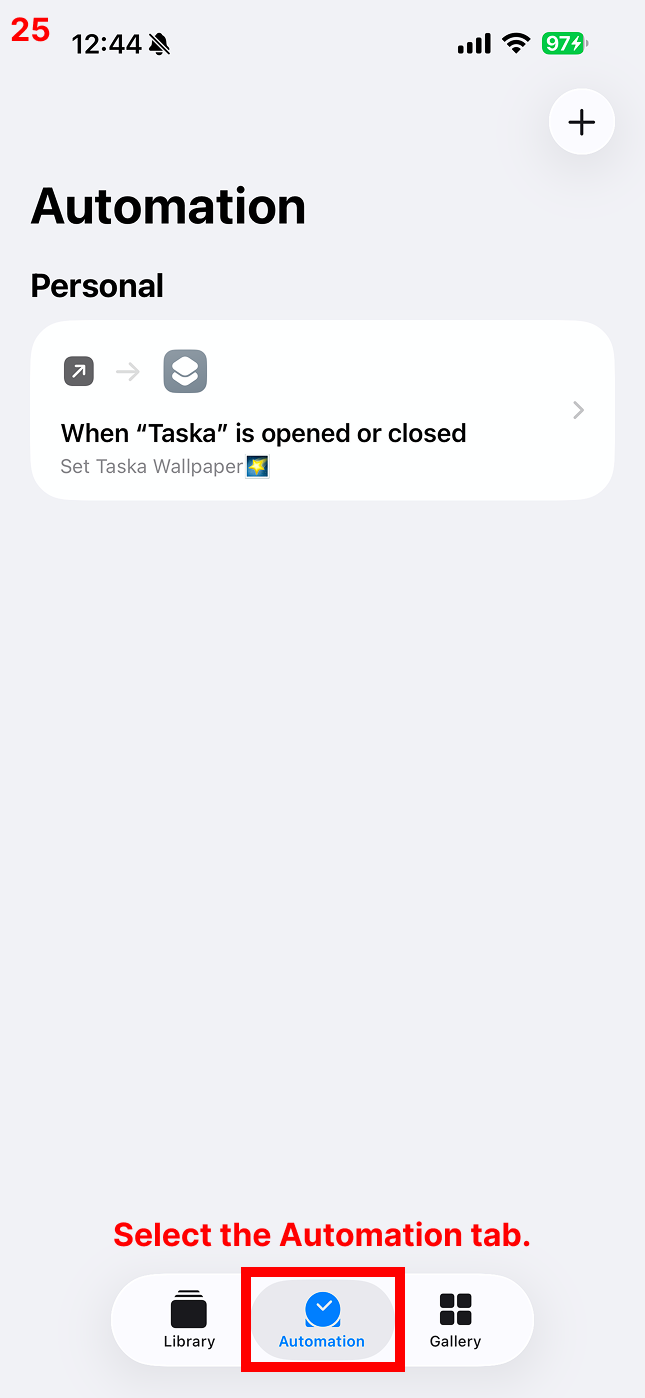
2Select the Automation tab
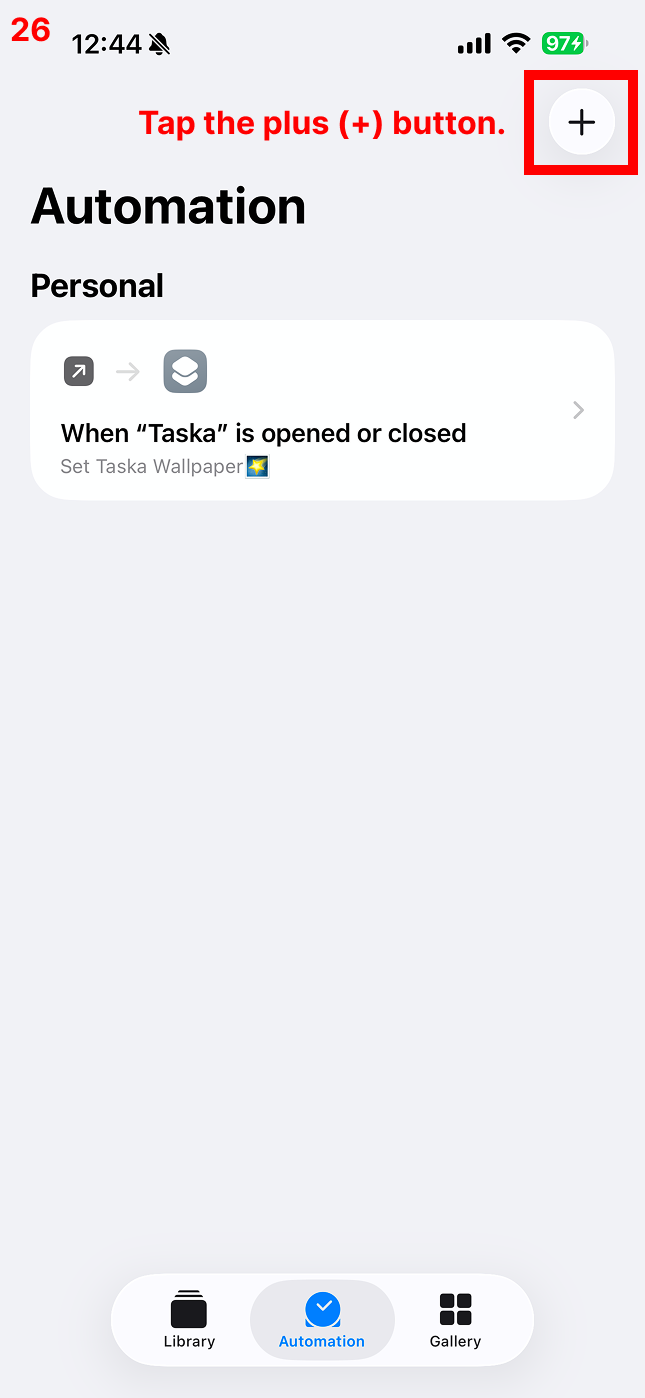
3Tap the plus (+) button
4Select Time of Day
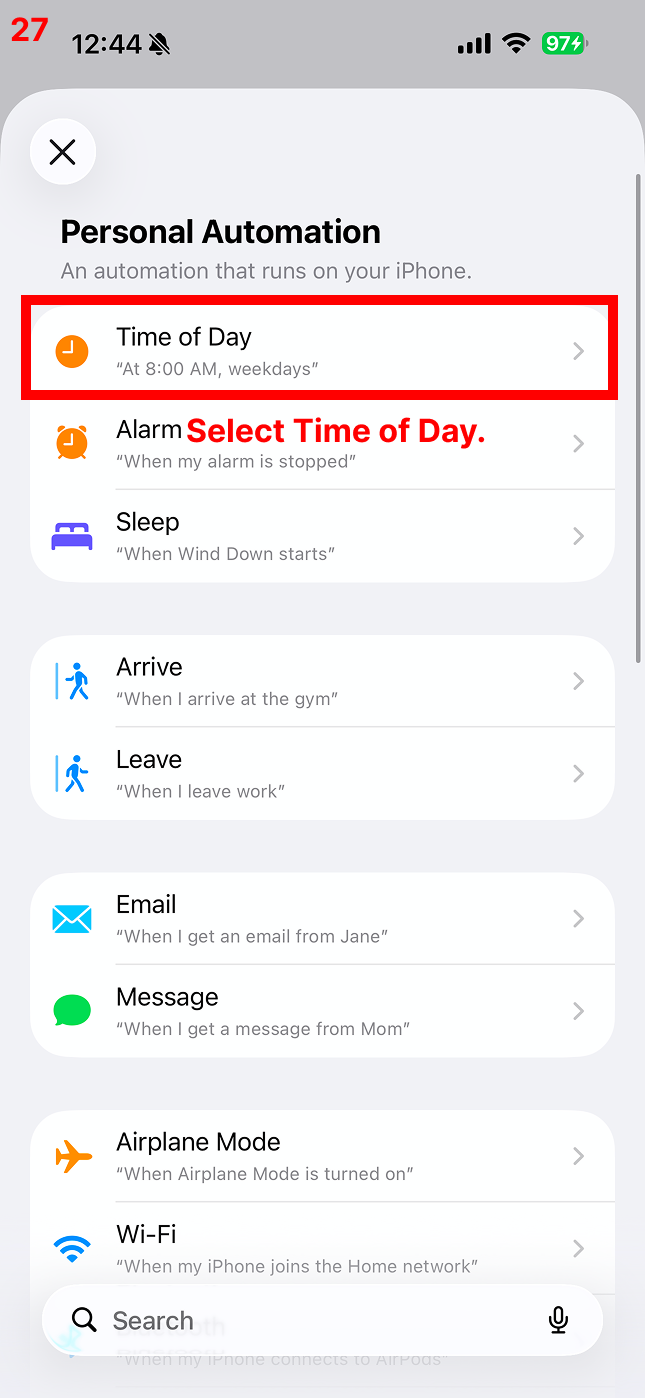
5Set it to 12:01 AM
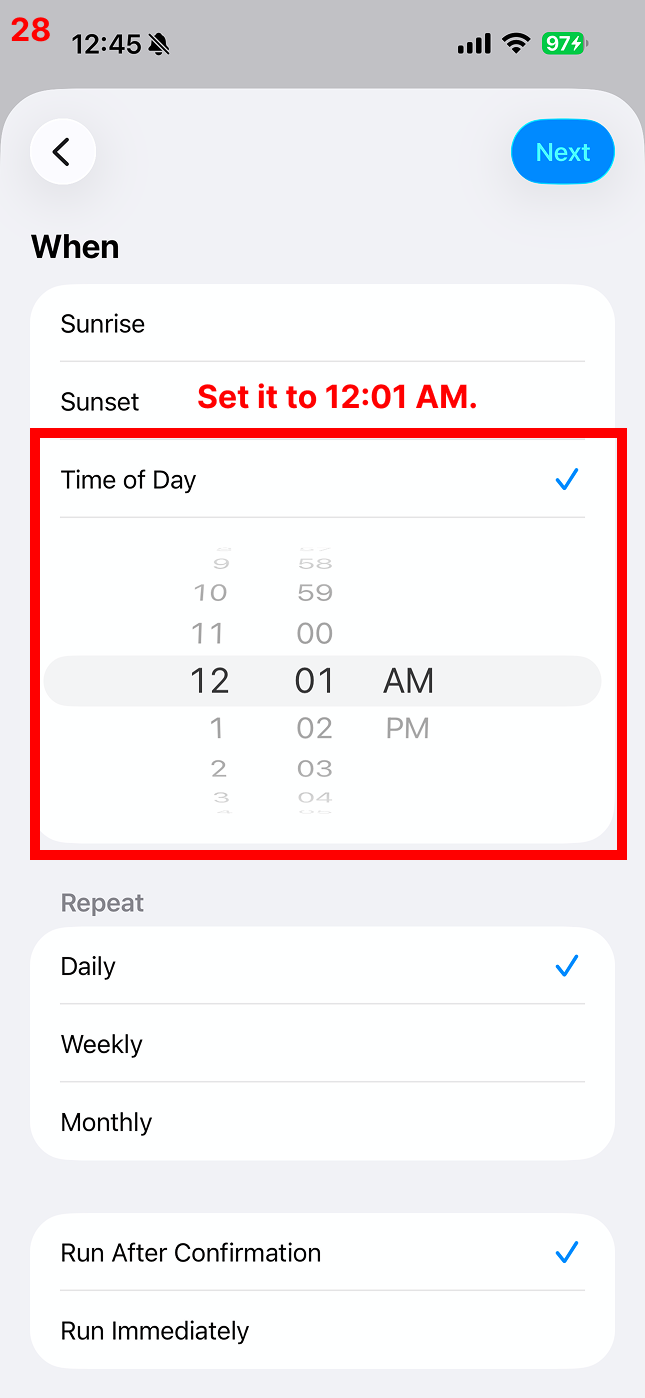
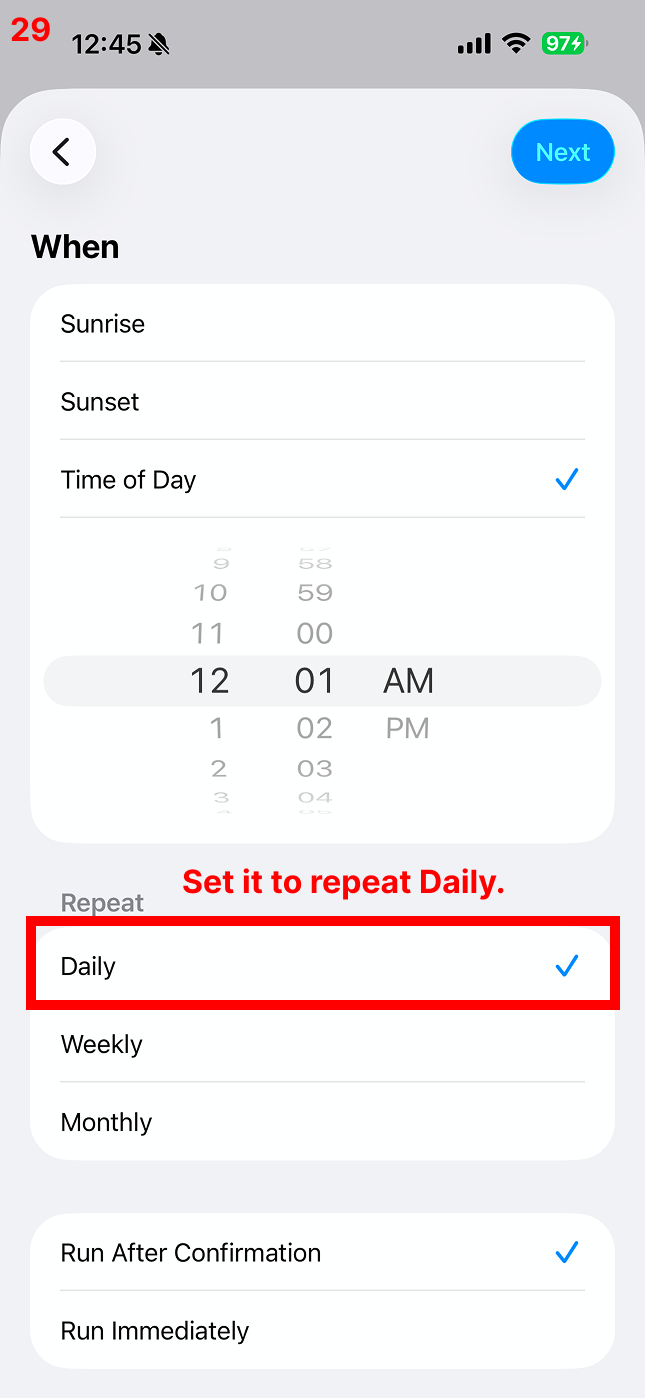
6Set it to repeat Daily
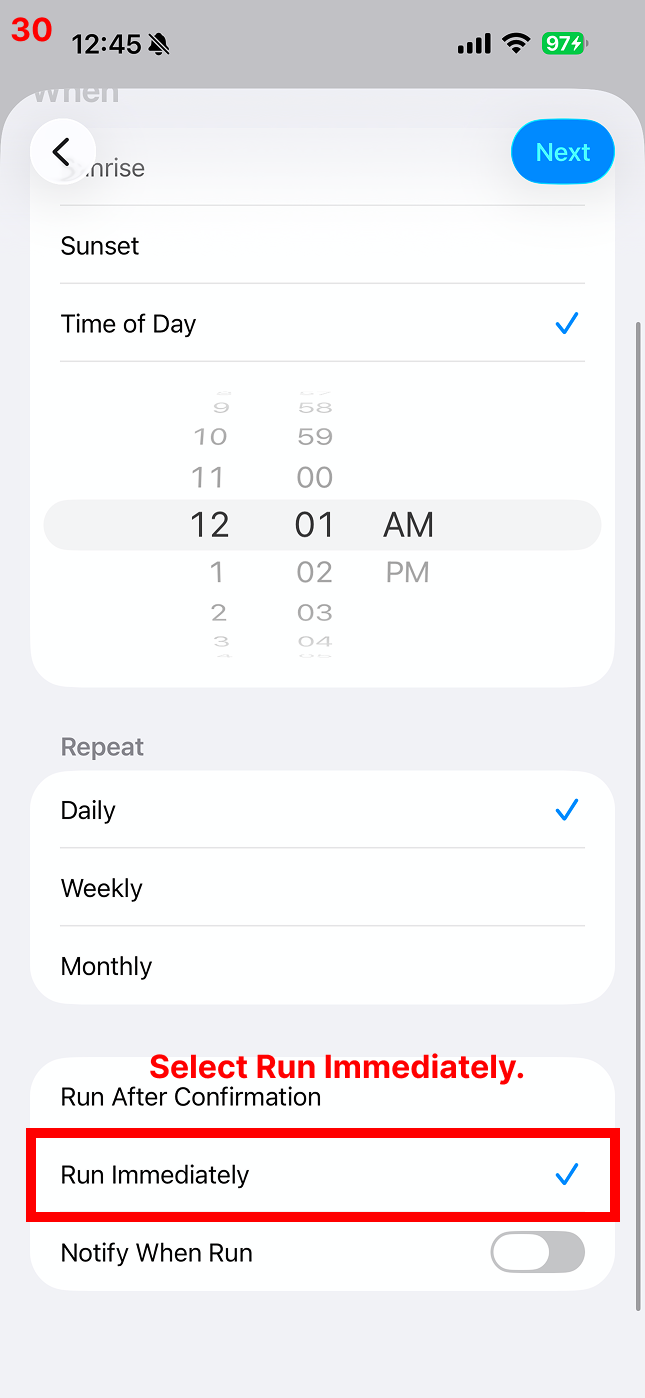
7Select Run Immediately
8Select Next
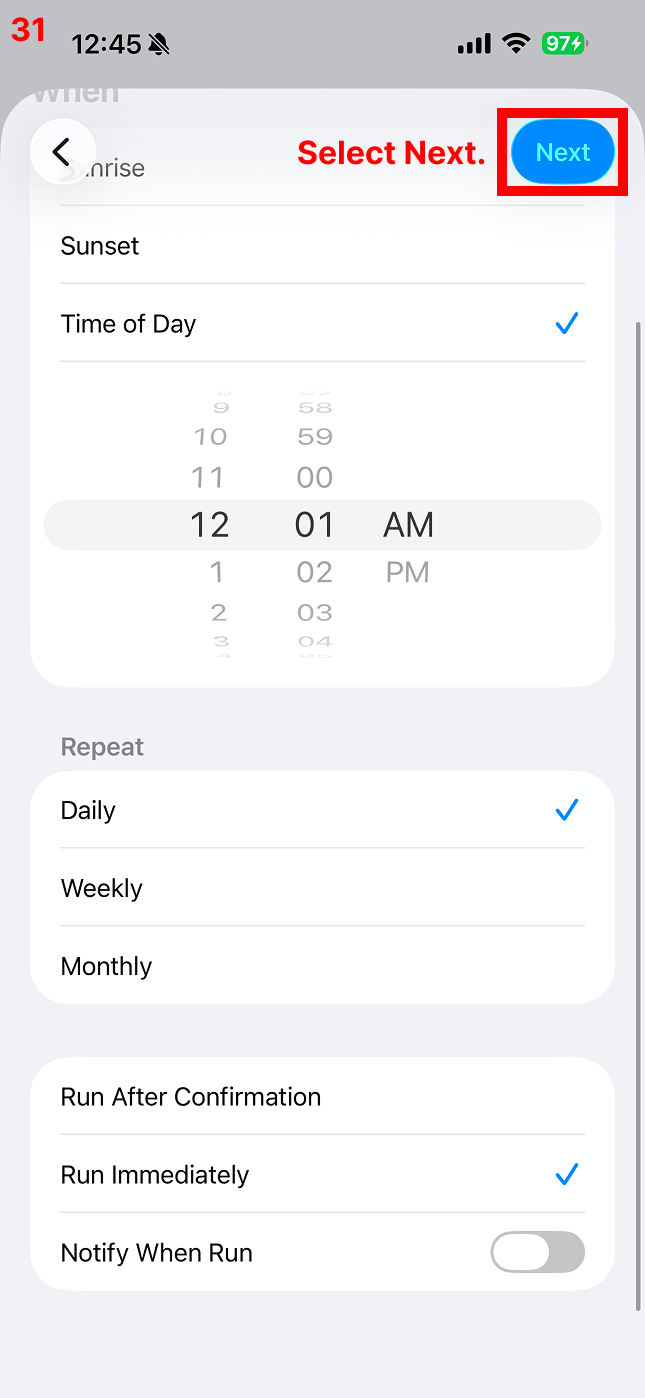
9Select the shortcut
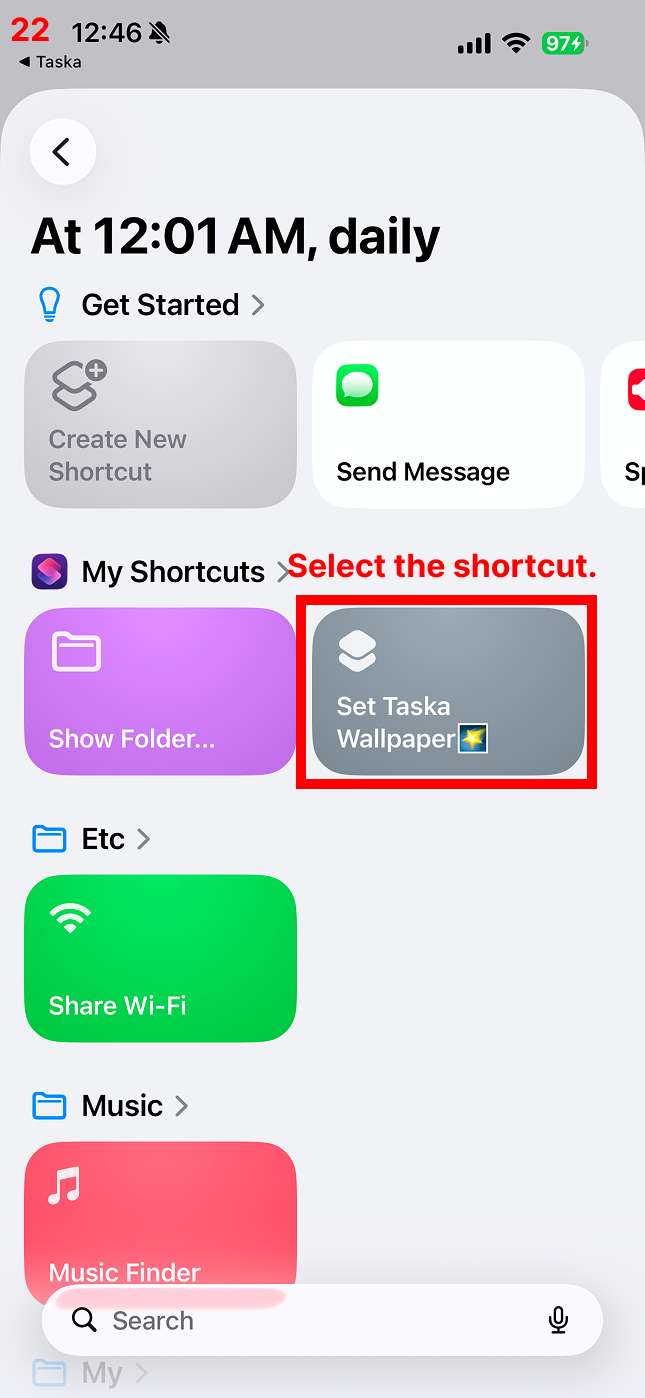
10Wallpaper setup is now completed automatically at the set time!
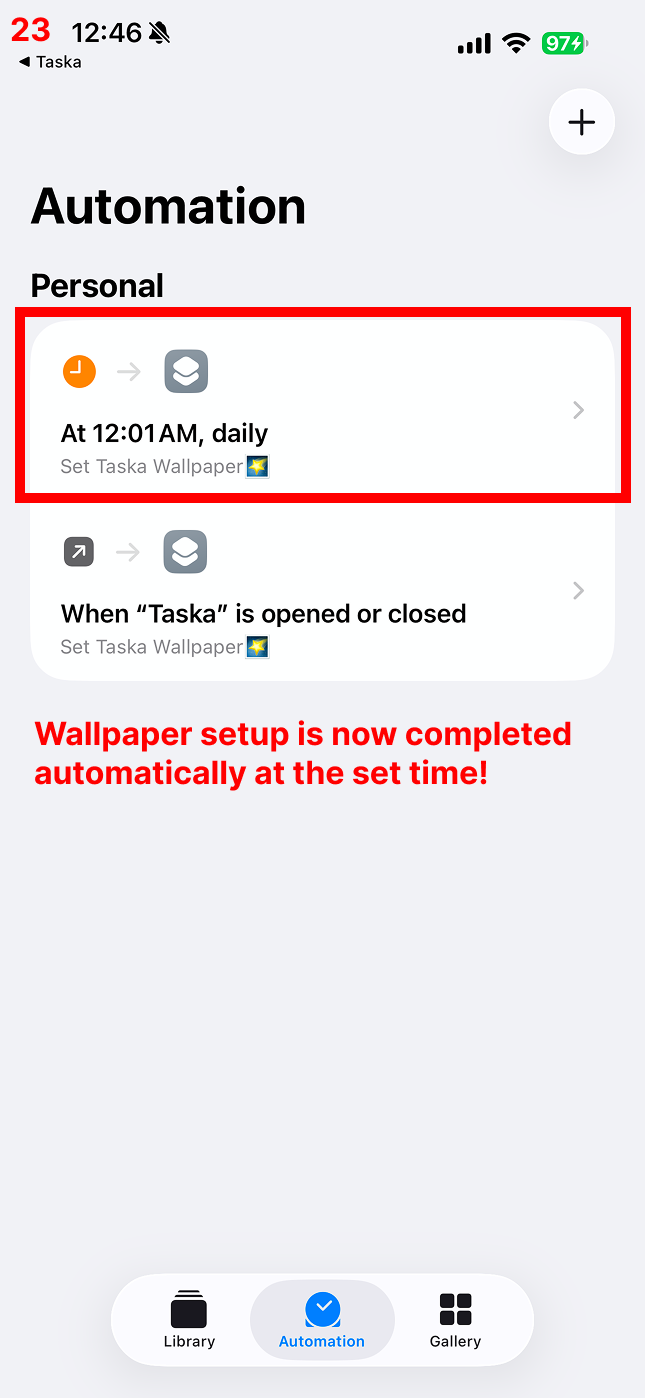
If you've completed the setup up to this point, your wallpaper will now change automatically at 12:01 AM! 😊
There is a known issue on iOS 18.6.2 where Shortcuts may not be configured properly due to an OS-level bug. Updating your iPhone to the latest version will resolve this issue.
3. FAQ
Q. How to set the matrix as the Lock Screen while using a different wallpaper for the Home Screen
Q. Tasks keep disappearing from the Lock Screen / Tasks not appearing on the Lock Screen
Q. Unable to complete the action. (com.apple.extensionKit.errorDomain error 2.) — How to fix
Q. Unable to set a photo on the selected wallpaper — How to fix
Please add a new image-based wallpaper, then select that wallpaper in the Shortcut!
Q. I've completed the automation setup, but the wallpaper still doesn't update
Long-press on an empty area of your Lock Screen and switch to the wallpaper you set up in the Shortcut.
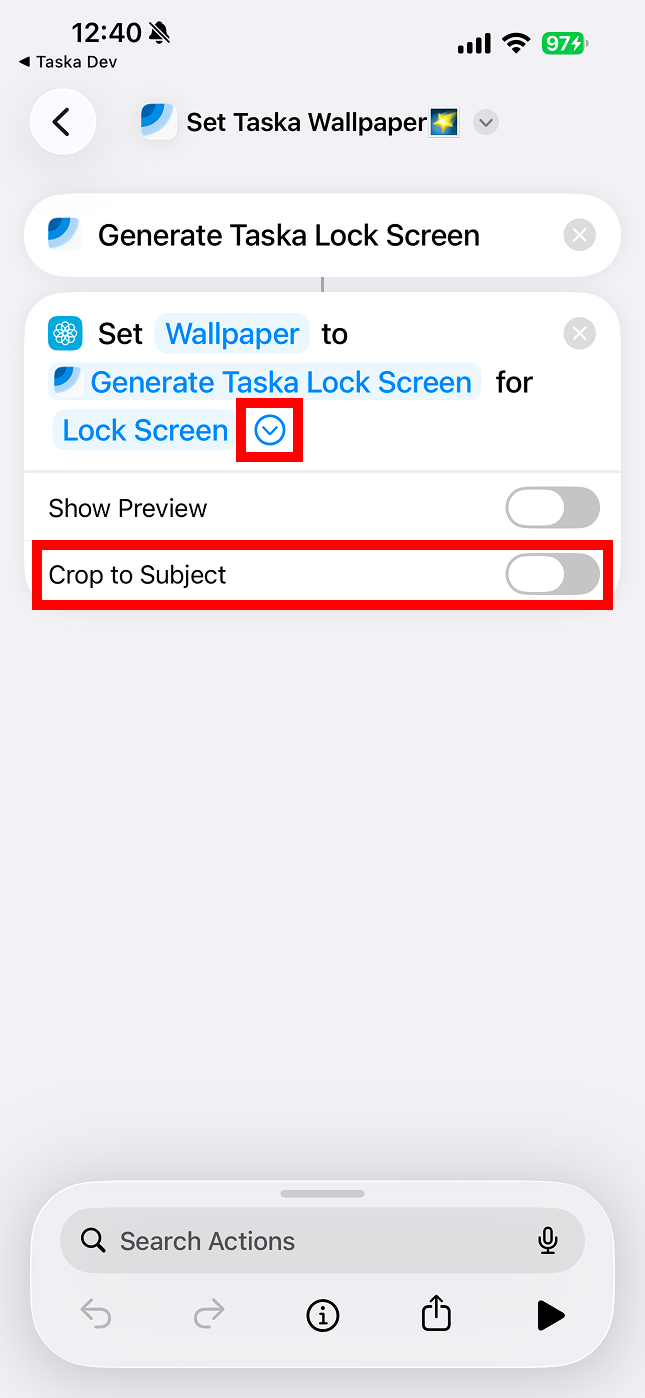
Q. My Lock Screen wallpaper looks blurry or low-quality
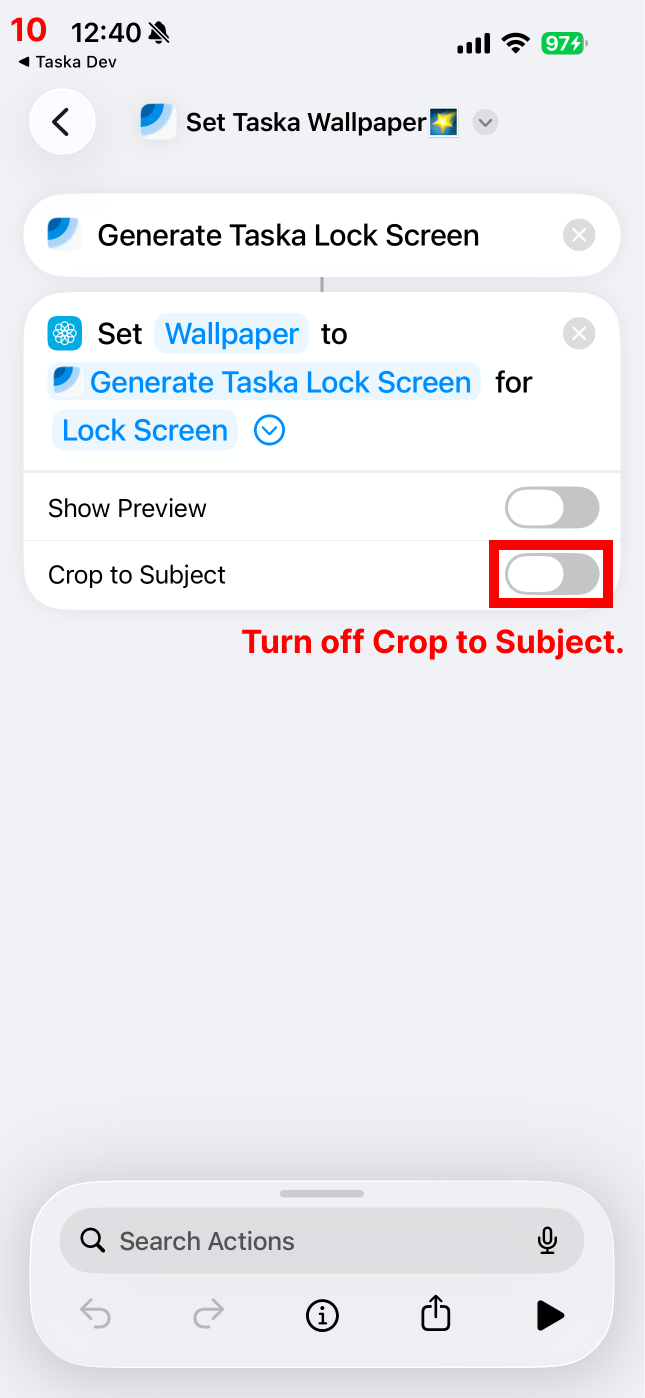
When this option is enabled, iOS converts the photo into a 3D effect, which can reduce image quality.
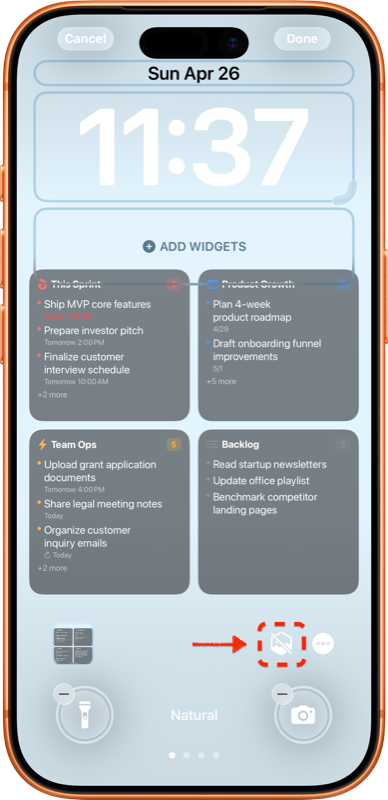
Q. The Lock Screen I set looks zoomed in
When this option is enabled, iOS may zoom the image around the detected subject.
Q. I've finished all the setup, but I can't see my tasks on the lock screen.
Long-press your lock screen, then swipe left or right to find the one showing the Taska matrix and select it.
Q. The wallpaper edit screen keeps popping up when the shortcut runs.
4. Contact Us
Thank you so much for following this long wallpaper automation setup all the way to the end ☺️
We hope managing your schedule becomes much easier with Taska.
If you experience any inconvenience or have suggestions, please feel free to contact us anytime.
Once again, thank you sincerely 🙏